Support
Frequently asked questions
timeblend is a new way to experience a city. Follow self-guided city walks and see the past come to life at the places where it happened.
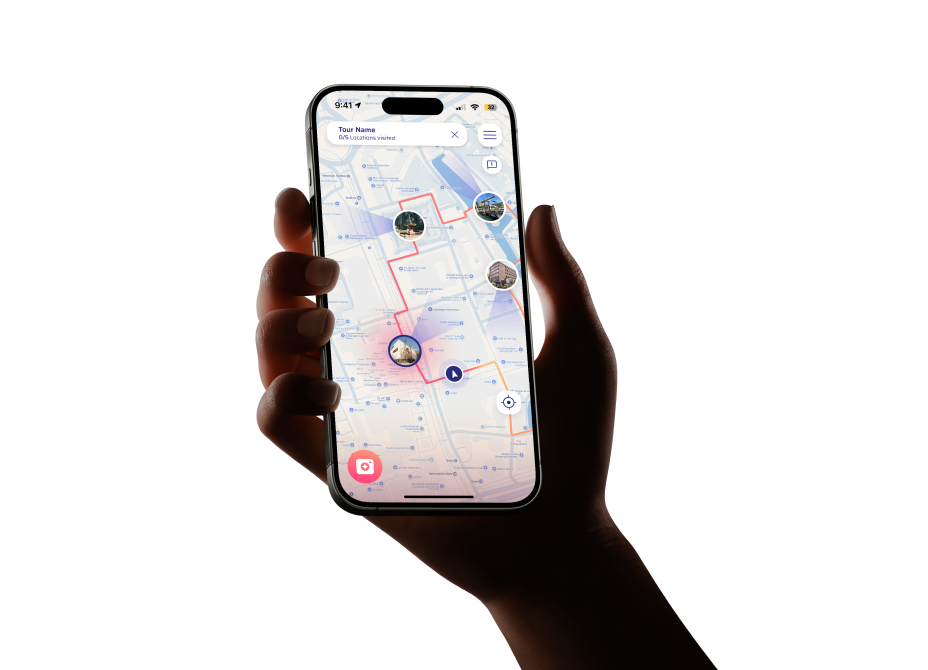
Choose a city walk, follow the route and use your phone at selected locations to explore different moments in time. timeblend combines historic imagery, stories and interactive experiences along the way.
timeblend launches in Rotterdam, with more cities coming soon.
Each city walk is purchased in the app. Prices are shown before you download or start a walk.
Most walks take around 1,5 hours, and can be completed at your own pace.
You’ll need an internet connection to download your timeblend experiences and content. Once downloaded, you can enjoy the experience on location without relying on a continuous internet connection.
Yes. timeblend is designed to bring history to life exactly where it happened. To experience the full AR experience, you’ll need to be at the location. You can still explore available destinations and prepare your visit from anywhere.
Yes. timeblend is made to be experienced and shared. At selected moments, you can capture and share your timeblend experience with friends and on social media.
timeblend explores real places and real history. The app does not focus on graphic content, but some historical stories may cover serious events. Younger users may therefore enjoy the guidance of parents or guidance.
Need help or have a question about the app? We aim to respond within 48 hours on business days. You can reach us by email at info@timeblend.app.
Restart the app and your device. Check whether you have downloaded the latest version of the app from the App Store. Still experiencing issues? Get in touch with us via the feedback button in the app.
Go to Settings / Apps and search for timeblend. Make sure the camera option is enabled there.
Go to Settings / Apps and search for timeblend. Under Location, make sure "While using the app" is selected, along with the Precise location option.
In this article we explain, step by step, how to install the timeblend app on your device so you can start your interactive time journey right away.
Step 1: Check the system requirements
Before you begin, it is important to check whether your device supports AR (Augmented Reality). The app works on:- iOS devices (iPhone or iPad) with iOS 15 or higher.
- Android devices that support ARCore (Android 9.0 or higher).
Step 2: Download the app
Open the store on your device and search for timeblend, or use the direct links below:- Go to the Apple App Store or Google Play Store.
- Tap "Download" or "Install".
- Wait for the installation to complete.
Tip: make sure you are connected to a stable Wi-Fi network. The app contains high-quality 3D models and can be quite large on the first download.
Step 3: Grant permissions
When you open the app for the first time, you will be asked to allow access to your camera and location. This is necessary to place the AR objects correctly in your surroundings.
Known issues
We're actively improving the app and wanted to be upfront about a few things we're already aware of:
- iOS notifications may be delayed by a few minutes on some devices. A fix is in progress.
- Dark mode isn't fully supported yet in the settings menu — some screens may still appear in light mode.
- Large file uploads (500MB+) can occasionally time out on slower connections.
- Search results may not update instantly after adding new items; refreshing the page resolves this.
Found something not listed here?
Contact information
Address
Kanaalweg 140
2321 JV Leiden
The Netherlands chamber of commerce under number
98782649

Ready to step into the past?